Finding out your WordPress site has been hacked is a stressful moment. The instinct is to act immediately, which is right, but the order of actions matters. Moving fast in the wrong direction can make the situation harder to resolve.
This article walks through what to actually do, from the first moments after discovering a problem through to getting the site clean and making sure it stays that way.
Confirm That Something Is Actually Wrong
Not every unusual symptom means a hack. A broken plugin update, a theme conflict, or a server error can produce symptoms that look alarming but have nothing to do with malicious access.
Common signs that genuinely point to a compromise include: visitors being redirected to unrelated sites, Google showing a warning when your site appears in search results, your hosting provider suspending the account for malicious activity, unfamiliar admin user accounts appearing in your dashboard, or your site being flagged by a security scanner.
If the symptom is a visual glitch or something that appeared right after an update, investigate that first before assuming the worst. Misdiagnosis wastes time.
Put the Site into Maintenance Mode
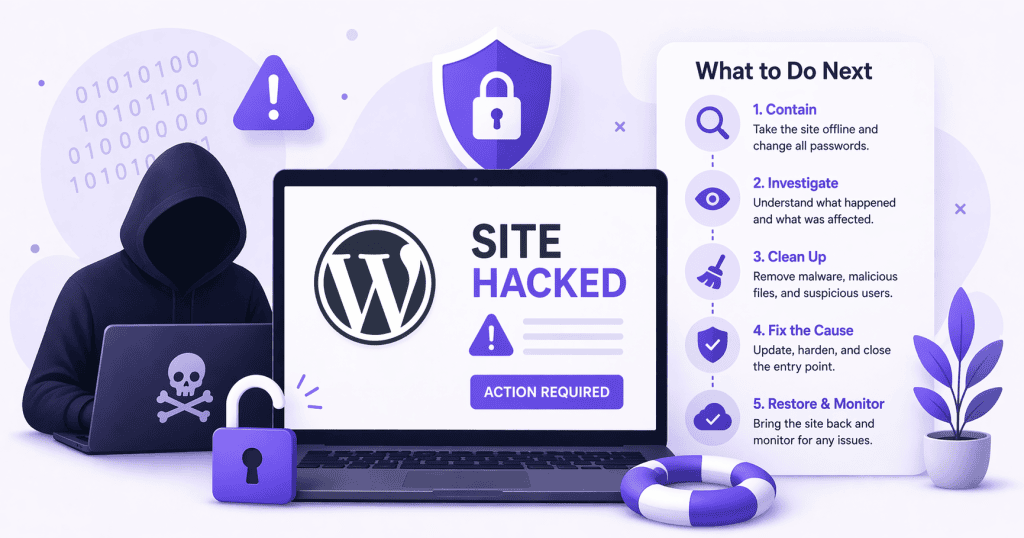
Once a compromise is confirmed, the first practical step is limiting exposure. Putting the site into maintenance mode stops visitors from landing on infected pages while you work through the problem.
If you cannot access the admin dashboard because it has been locked or altered, your hosting provider can usually help you set a maintenance page at the server level.
This step is not about hiding the problem. It is about making sure visitors are not being actively harmed while you fix it.
Change All Credentials Immediately
Before doing anything else on the site itself, change the passwords for everything connected to it.
That means the WordPress admin accounts, the hosting control panel, the database password, and the FTP or SFTP credentials. If your site uses a staging environment with its own credentials, change those too.
The reason for doing this before cleanup is straightforward. If the attacker still has valid credentials, any work done on the site can be undone quickly. Locking them out is the starting point, not something to do after the cleanup is finished.
While you are in the admin area, look at the user list. Remove any admin accounts that you do not recognize. Attackers routinely create hidden admin users as a way to maintain access even after a cleanup.
Decide Whether to Restore or Clean
This is the most important decision in the process, and it depends on a few factors.
A restore from backup is the faster and cleaner option if a recent clean backup exists. A known-good backup from before the infection removes the compromised files entirely and replaces them with a verified state. The risk is losing any content or changes made after the backup date.
Cleanup is the right path when no clean backup is available, when the backup itself is suspected to be infected, or when the site has significant recent activity that would be lost in a restore.
If restoring from backup, do not simply restore and move on. The vulnerability that allowed the initial compromise still exists unless it has been identified and addressed. A restored site running the same outdated plugin or weak credentials will be compromised again, often quickly.
Run a Thorough Malware Scan
Whether restoring or cleaning, a full malware scan is necessary.
Security plugins with file integrity checking can compare your current files against known clean versions of WordPress core, plugins, and themes. They surface modified files, injected code, and suspicious additions.
Pay particular attention to the uploads directory. This folder is often writable by design and is a common place for attackers to plant executable files. Legitimate files in the uploads directory should be images, documents, and media files, not PHP scripts.
The database also needs checking. Injected content can live in post content, widget settings, and option values, including hidden redirects and obfuscated scripts that only execute under certain conditions.
Identify the Entry Point
Skipping this step is why sites get reinfected.
The access logs held by your hosting provider show the requests made to your server in the period before and during the compromise. A security professional reviewing those logs can usually identify which file was exploited, which credential was used, or which request pattern preceded the infection.
Without identifying the entry point, cleanup is incomplete. You are removing the symptoms without addressing the cause.
Apply Post-Cleanup Hardening
Once the site is clean and the entry point is known, the immediate priority is making sure the same path cannot be used again.
If a plugin vulnerability was the entry point, that plugin needs to be updated or replaced. If weak credentials were involved, the credential policies need to change. If the hosting environment contributed through poor isolation, that is worth reassessing.
Beyond the specific entry point, this is a good moment to apply baseline hardening that should already be in place: two-factor authentication on all admin accounts, limited login attempts, removal of any plugins or themes that are inactive or no longer maintained, and a confirmed backup schedule with off-site storage.
None of these are difficult changes. They are the standard setup that reduces the attack surface significantly.
Keep Monitoring After the Cleanup
A site that looks clean is not necessarily clean. Some malware is designed to lie dormant or reactivate under specific conditions. Some backdoors are small enough that a basic scan may not surface them.
Running uptime and file change monitoring for a few weeks after a cleanup provides reasonable assurance that the infection has been fully resolved. If something unusual appears during that window, catching it early makes it much simpler to address.
What Professional Cleanup Actually Involves
Handling a WordPress compromise properly is more involved than running a security plugin and removing flagged files.
A thorough cleanup means auditing every modified file, confirming that core files match known-good checksums, reviewing the database for injected content, checking all user accounts and access credentials, identifying the entry point through log analysis, and applying hardening against the same attack path. It also means verifying the site after cleanup, not just declaring it clean.
For sites handling real business activity, an eCommerce store, a membership site, or anything processing customer data, getting this right matters more than getting it done quickly.
If you need this handled properly, WPFellow provides WordPress malware removal and full site cleanup. Every engagement includes entry point identification and post-cleanup hardening, not just surface-level file removal.