Installing a caching plugin is the most common first response to a slow WordPress site. It is also one of the most misunderstood.
Caching plugins can make a real difference, but they solve a specific problem. If the site’s speed issues come from somewhere else, caching will mask them at best and do nothing at worst. Understanding what caching actually does, and what it leaves untouched, is important before assuming the problem is solved.
What a Page Caching Plugin Actually Does
When a visitor loads a WordPress page without caching, the server runs PHP, queries the database, assembles the page from templates and content, and sends the finished HTML to the browser. This process happens on every request.
A page caching plugin stores the finished HTML the first time a page is generated. On subsequent requests from other visitors, the plugin serves that stored copy directly, skipping the PHP execution and database queries entirely. This is a significant speedup for the server-side portion of the page load.
Where This Helps
For logged-out visitors viewing static content pages, blog posts, and landing pages, page caching is highly effective. The server does almost no work because the cached HTML is served directly. Response times drop, server load decreases, and the site can handle more concurrent visitors without strain.
Where This Does Not Help
Caching only eliminates the server-side processing step. It does nothing about what happens after the HTML reaches the browser. And it does not apply to every type of request.
What Caching Does Not Fix
This is where the gap between expectation and reality shows up. A site can have caching configured perfectly and still be slow for multiple reasons.
Slow Hosting
If the web server itself is underpowered, overloaded, or poorly configured, the initial response time will be slow regardless of caching. The time it takes for the server to even begin sending the cached file, known as Time to First Byte (TTFB), is determined by the hosting infrastructure, not the caching plugin.
On shared hosting environments where resources are divided among many sites, TTFB can be inconsistent. Caching reduces the processing load per request, but if the server is fundamentally constrained, the improvement has a low ceiling.
Bloated Front-End Output
A caching plugin stores and serves whatever HTML the page generates. If that HTML includes dozens of CSS files, render-blocking JavaScript, unoptimized images, and excessive DOM elements, the cached version delivers all of that bloat just as fast as the server can send it.
The visitor’s browser still has to download, parse, and render everything. Large page sizes, too many HTTP requests, uncompressed assets, and heavy JavaScript execution are all front-end problems that caching does not touch.
A cached page that weighs 5 MB and loads 40 scripts will still feel slow in the browser, even if the server delivered it in milliseconds. This is a common scenario on WordPress sites built with feature-heavy page builders and multiple plugins that each add their own front-end assets. The cache makes the server fast, but the browser still has to do all the work of rendering a bloated page.
Logged-In User Experience
Page caching typically does not apply to logged-in users. WordPress generates different content for authenticated visitors, including admin bars, personalized dashboards, and user-specific data. Serving a cached version to a logged-in user would show them the wrong content.
This means that for site administrators, editors, and any logged-in members or customers, every page load runs the full PHP and database process. If the site is slow before caching, it will still be slow for these users after caching is installed.
WooCommerce and Dynamic Pages
On WooCommerce stores, several critical pages cannot be cached at all. The cart page is unique to each visitor. The checkout page involves session data and payment processing. Account pages display user-specific order history.
These are often the most important pages on the site from a business perspective, and they receive no benefit from page caching. If the store is slow on these pages, caching is not the fix. The problem is typically in the server, the database queries, or the plugin stack.
The WordPress Admin Dashboard
The admin dashboard is entirely dynamic. Every request involves PHP processing, database queries, and often external API calls from plugins checking for updates, loading analytics, or syncing data. Caching plugins do not cache the admin area.
If the WordPress dashboard is slow, caching cannot help. The causes are usually plugin overhead, excessive autoloaded data in the database, cron jobs running on every admin request, or the hosting environment itself. For site owners who spend significant time in the admin, this is often the most noticeable performance problem, and it is entirely outside the scope of what a page caching plugin can address.
What Else Affects Speed Beyond Caching
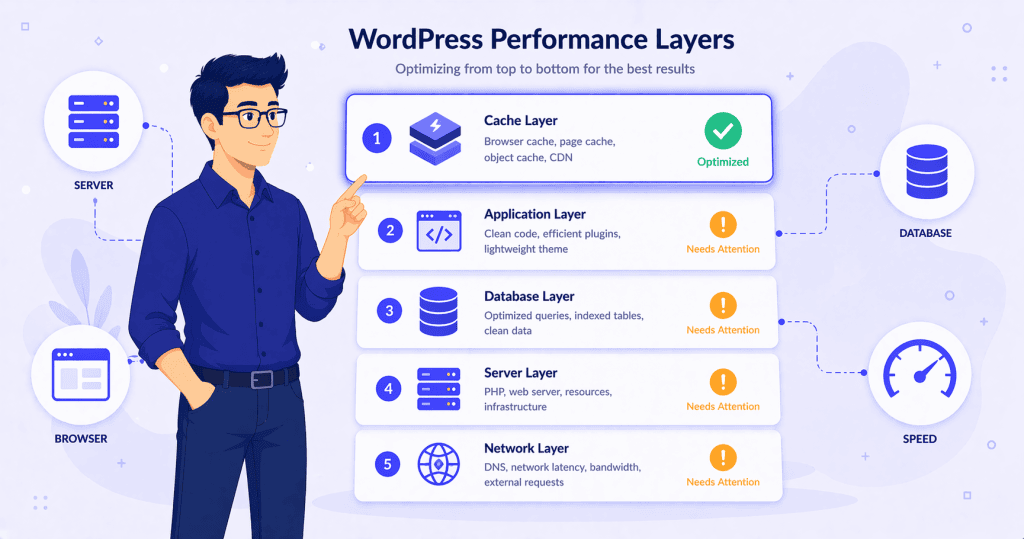
Caching is one layer in a performance stack. The other layers often matter more.
Image Optimization
Unoptimized images are still one of the most common causes of slow page loads. Large image files that have not been compressed or served in modern formats like WebP add directly to the page weight and download time. This is a front-end problem that exists regardless of whether the page is cached.
JavaScript and CSS Management
The number and size of JavaScript and CSS files loaded on each page directly affects how quickly the browser can render it. Plugins that load their scripts globally, page builders that generate heavy front-end code, and third-party tags that execute on every page all contribute to slow rendering that caching does not address.
Server-Level Configuration
PHP version, server-side compression (gzip or Brotli), HTTP/2 support, and keep-alive connections all affect how efficiently the server delivers content. A well-configured server with modern PHP and proper compression can outperform a poorly configured one with a caching plugin installed.
Object Caching
Object caching is different from page caching. It stores the results of individual database queries in memory using tools like Redis or Memcached. This benefits the requests that page caching cannot help, including logged-in users, admin pages, and dynamic WooCommerce pages.
WordPress has a built-in object cache, but it only lasts for the duration of a single request. A persistent object cache keeps query results across requests, so repeated database lookups are served from memory instead of hitting the database again. For sites where database query load is a bottleneck, especially WooCommerce stores and membership sites, object caching often makes a bigger practical difference than page caching because it speeds up exactly the pages that page caching cannot touch.
Where Caching Fits in the Right Order
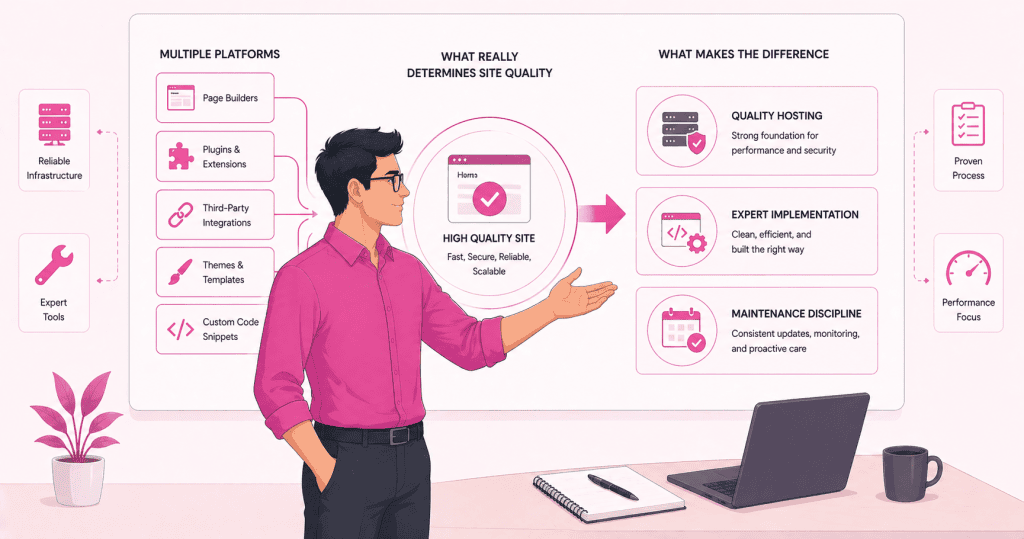
The most effective approach to WordPress speed is to fix the underlying problems first and add caching last.
Start with the hosting environment. Make sure the server is reasonably powered and running a current PHP version. Audit the plugin stack and remove what is unnecessary. Optimize images. Reduce the amount of JavaScript and CSS the front end has to load. Fix database bloat, especially autoloaded data. Address any slow queries from plugins.
Then add caching. When the foundation is already clean and efficient, caching makes it even faster. When the foundation is slow and bloated, caching puts a thin layer of speed over a site that is still slow underneath.
This sequencing also makes troubleshooting easier. If the site is slow after caching, the problem is clearly not on the server-side rendering path. It is either in the hosting infrastructure, the front-end delivery, or the dynamic pages that caching does not cover. Diagnosing performance issues is simpler when each layer has been addressed in order rather than hoping a single plugin covers everything.
Conclusion
Caching plugins are useful. They reduce server load, improve response times for static content, and help sites handle traffic more efficiently. But they are not a performance strategy on their own.
A slow WordPress site with a caching plugin is still a slow WordPress site in every scenario the cache does not cover. The fix is to address what is actually causing the slowness, and then use caching to make an already-healthy site faster.
If your site is still slow after installing a caching plugin, WPFellow’s WordPress Speed Optimization service starts with a diagnostic review to identify what is actually causing the problem, not just what can be masked by a cache layer.