A WordPress site can load quickly for visitors while the admin dashboard crawls. This is not a contradiction. The front end and the back end are different performance environments, and what makes one fast often has no effect on the other.
Page caching, CDNs, and most front-end optimizations do not apply to the admin. Every admin page load runs PHP, queries the database, loads assets from every active plugin, and processes whatever background tasks are scheduled. When any of these become inefficient, the admin is where the impact is felt most directly.
Why the Admin Is a Different Performance Problem
The public-facing side of a WordPress site benefits from caching layers that skip the heavy processing. A cached page serves pre-built HTML to the visitor without touching PHP or the database.
The admin dashboard cannot work this way. It is entirely dynamic. Every page load requires WordPress to initialize fully, check user permissions, load plugin admin interfaces, query the database for content and settings, and render a page specific to that user and that moment. There is no shortcut. Every request does the full work.
This is why a site can score well on PageSpeed Insights while the person managing it feels like every click takes several seconds. The front end and the admin are running on different rules.
The Most Common Causes
Admin slowness is rarely one dramatic problem. It is usually an accumulation of smaller issues, each adding a fraction of a second until the total becomes noticeable. Here are the most common contributors.
Plugin Overhead
Every active plugin has the opportunity to run code on admin pages. Some plugins are well-optimized and only load what they need on the screens where they are relevant. Others load their full assets, run their background checks, and query the database on every admin page regardless of context.
The cumulative effect of 20 or 30 plugins, each adding their own overhead to every admin request, is one of the most common causes of a slow dashboard. The issue is not usually one bad plugin. It is the total weight of everything running together.
The Heartbeat API
WordPress includes an API called Heartbeat that sends periodic AJAX requests from the browser back to the server. It handles autosaves, post locking (preventing two users from editing the same post simultaneously), and real-time dashboard notifications.
By default, the Heartbeat API sends a request every 15 to 60 seconds depending on the screen. Each request triggers a full WordPress bootstrap on the server. On sites with limited server resources, this constant background activity can saturate PHP workers and make other admin requests queue up and wait.
Reducing the Heartbeat frequency or disabling it on screens where it is not needed, such as the main dashboard and plugin list, is one of the simpler and more effective improvements for admin performance.
Autoloaded Data in the Database
WordPress loads all autoloaded options from the wp_options table into memory on every request, including admin requests. When plugins leave behind large amounts of autoloaded data, especially after being removed without cleanup, this initialization step gets heavier over time.
If autoloaded data has grown past 1 MB, every admin page load starts with a measurable delay before WordPress even begins rendering the page. This is the same issue discussed in database optimization, but its impact is felt most acutely in the admin because there is no cache layer to absorb it.
External HTTP Requests
Some plugins make external API calls during admin page loads. Update checkers that query remote servers to see if new versions are available. Analytics plugins that pull data from third-party services. Social media tools that verify API connections. News and event widgets on the dashboard that load content from WordPress.org.
Each external request adds latency that depends on the remote server’s response time, which is outside your control. When several plugins each make their own external calls on the same page load, the cumulative delay can be significant. If a remote server is slow or unresponsive, the entire admin page can hang waiting for a timeout.
These requests are not always obvious. A plugin might check for license validation, load remote widget content, or sync data with a third-party service without any visible indicator. The delay simply shows up as a slower page load with no clear explanation unless someone inspects the HTTP requests happening behind the scenes.
Hosting Constraints
If the server is underpowered, running an outdated PHP version, or sharing resources with too many other sites, admin performance will have a hard ceiling that no plugin or configuration change can fully overcome.
Signs that hosting is the constraint include consistently slow admin response times even on a minimal WordPress installation, high TTFB on admin pages, and slow recovery after even small traffic spikes. On shared hosting with limited PHP workers, the Heartbeat API and plugin background tasks can consume the available workers, leaving other admin requests waiting in line.
Large Content Libraries
Sites with thousands of posts, products, or media files can experience admin slowness in specific areas. The post list screen queries the database with sorting and filtering on every load. The media library loads thumbnails and metadata for potentially thousands of files. WooCommerce order lists on stores with years of transaction history can be particularly slow.
These issues tend to affect specific admin screens rather than the dashboard as a whole, and they are usually addressable with database indexing, pagination adjustments, or in some cases, offloading older data.
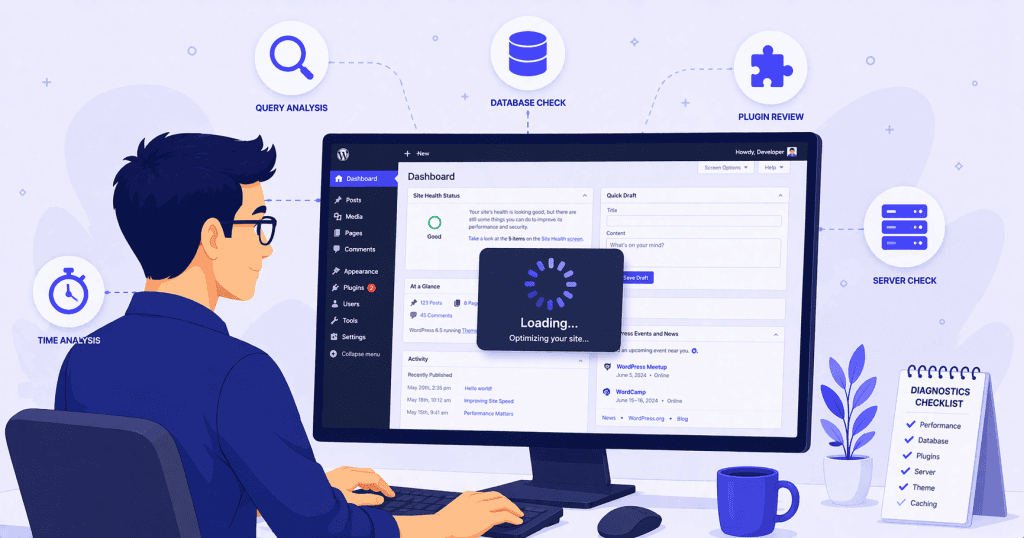
How to Diagnose Instead of Guessing
The least effective approach to admin slowness is to try random fixes and hope one works. The most effective approach is to identify what is actually causing the delay.
Identify Which Screen Is Slow
Admin slowness is not always uniform. The main dashboard might load quickly while the plugin list is slow, or the post editor might be responsive while the WooCommerce orders screen drags. Knowing where the slowness occurs narrows the diagnosis significantly.
Check Plugin Contribution
Deactivating all plugins and reactivating them one at a time is a basic but reliable diagnostic method. If the admin becomes fast with all plugins disabled, the cause is in the plugin stack. Reactivating them in small groups identifies which one, or which combination, is responsible.
It is worth noting that plugin conflicts can also cause slowness that neither plugin would cause on its own. Two plugins that each hook into the same admin process can create a compounding effect where the total delay is greater than the sum of their individual overhead. This is why group testing sometimes reveals issues that individual plugin testing does not.
Look at Server-Side Timing
If the admin is slow even with minimal plugins, the issue is likely at the server or database level. Checking TTFB on admin pages, reviewing PHP error logs for warnings, and checking whether the hosting environment is running a current PHP version are all useful starting points.
Object caching with Redis or Memcached can also make a meaningful difference for admin performance specifically. Since admin pages are database-heavy and cannot benefit from page caching, reducing the database load through persistent object caching often improves admin responsiveness more noticeably than any front-end optimization would.
Treat It as Ongoing Maintenance
Admin performance tends to degrade gradually as plugins accumulate, the database grows, and background tasks multiply. A dashboard that is fast today can be noticeably slower in six months without anyone making a deliberate change. Periodic checks keep the environment clean before the slowness becomes a daily frustration.
Conclusion
A slow WordPress admin dashboard is a productivity problem that affects everyone who manages the site. It is also a diagnostic signal. The causes are almost always identifiable, and the fixes are usually straightforward once the actual bottleneck is found.
The key is diagnosis first, fixes second. A structured review of plugin overhead, database health, server configuration, and background activity will find the cause faster than guessing.
If your WordPress admin feels sluggish and you want a clear answer about what is causing it, WPFellow’s WordPress Speed Optimization service includes admin performance diagnostics, and our WordPress Care Plans monitor for the kinds of gradual degradation that cause dashboards to slow down over time.