Most WordPress security advice falls into one of two traps. It is either a long list of plugins to install, or a deeply technical walkthrough aimed at developers. Neither is particularly useful for a site owner who wants to know what actually needs to be in place and why.
This article covers the baseline hardening measures that make a meaningful difference for real sites. Not every possible configuration change. Not a plugin catalogue. The things that close the most common attack paths without requiring a security specialist to implement.
Why Defaults Are a Starting Point, Not a Finished Setup
WordPress ships with sensible defaults for getting a site running. It does not ship hardened for production.
The default login URL is the same for every WordPress installation in the world. The default admin username during older installs was “admin.” File editing is enabled inside the dashboard by default. None of these are disasters on their own, but they represent known, predictable attack surfaces that take very little effort to change.
Hardening is the process of removing that predictability. Attackers rely on defaults because defaults are consistent across millions of sites. Changing them, even in small ways, reduces the value of automated attacks.
Protect the Login Page
The WordPress login page is one of the most consistently targeted parts of any installation. Automated tools run through credential lists against it continuously.
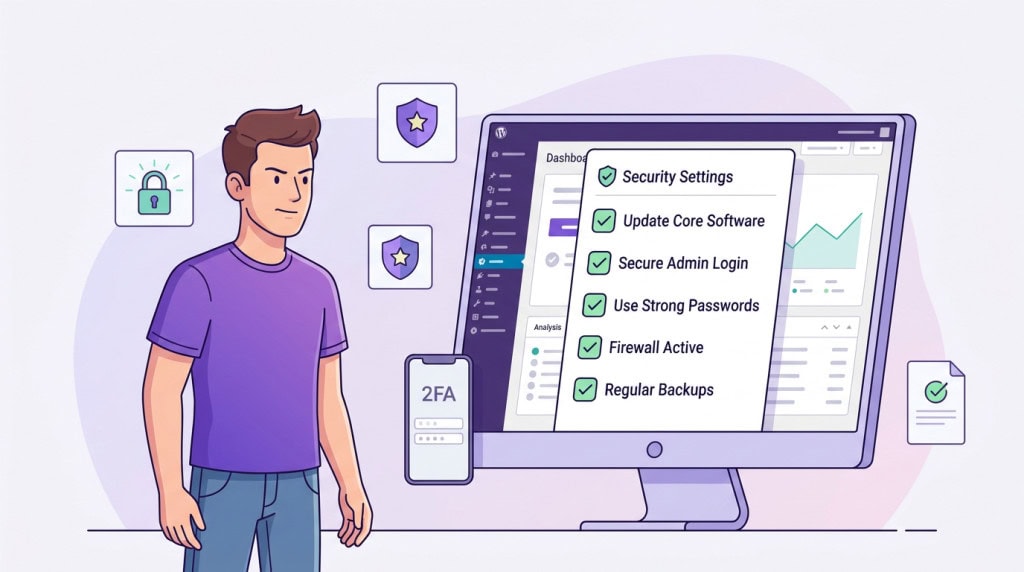
The starting point is straightforward. Use a strong, unique password on every admin account and enable two-factor authentication. Two-factor authentication alone makes brute force attempts functionally irrelevant, because a valid password is no longer enough to gain access.
Limiting login attempts is also worth implementing. By default, WordPress allows unlimited login attempts. A simple limit stops automated tools from cycling through credential lists indefinitely.
Changing the default login URL from /wp-admin or /wp-login.php to something less predictable adds another layer of friction. It will not stop a determined attacker, but it eliminates the bulk of automated scanning that never gets past the login page.
Keep Admin Accounts Clean
The WordPress user list deserves more attention than most site owners give it.
Every admin account is a potential entry point. Accounts belonging to former developers, agencies that no longer work on the site, or team members who have moved on should be removed. If a role genuinely only needs to read or publish content, that account should not be an administrator.
Use the minimum permissions required for each account to do its job. An editor does not need admin access. A client reviewing content does not need admin access. Reducing the number of active admin accounts reduces the number of ways in.
Review the user list periodically, not just during setup. Hacked sites frequently show unfamiliar admin accounts that were quietly added during or after a compromise.
Disable File Editing in the Dashboard
WordPress includes a built-in code editor that allows theme and plugin files to be edited directly from the admin dashboard. It is a convenient feature and a real security risk.
If an attacker gains access to an admin account, dashboard file editing gives them the ability to modify PHP files directly without needing FTP or server access. Disabling it removes that capability.
This is a single line added to wp-config.php:
define('DISALLOW_FILE_EDIT', true);
Most production sites have no legitimate need for in-dashboard file editing. Changes to theme and plugin files should happen through a development environment, not through a browser-based editor on the live site.
Set Correct File Permissions
File and directory permissions control who can read, write, and execute files on the server. Loose permissions are a frequent contributor to how infections spread and persist.
The general standard for WordPress is 644 for files and 755 for directories. The wp-config.php file, which contains database credentials and configuration keys, should be set to 600 or 640 to restrict access further.
Permissions that are too open, particularly 777 on directories, mean that scripts can write files into those locations. That is how attackers plant backdoors and malicious files in places they are likely to be overlooked.
If you are not sure what permissions are currently set, your hosting file manager or a security plugin with a file permission audit will surface anything that looks wrong.
Keep WordPress, Plugins, and Themes Current
This belongs in any hardening conversation because outdated software is the most common entry point for WordPress compromises.
Plugin and theme vulnerabilities are publicly disclosed when they are patched. That disclosure is what triggers automated scanning. A site running a vulnerable plugin version after a patch has been released is a known soft target.
Staying current does not mean updating everything the moment a release lands. It means having an active update process that applies security patches promptly, with enough testing discipline to catch compatibility issues before they become site-breaking problems.
Use HTTPS and Keep the Certificate Current
HTTPS encrypts traffic between the browser and the server. For a site handling any kind of login, form submission, or customer data, it is not optional.
Most hosting providers make SSL certificates straightforward to set up. The thing worth checking is renewal. An expired certificate produces browser warnings that damage visitor trust and can affect search visibility.
Also worth confirming is that the site is fully loading over HTTPS with no mixed content warnings. Mixed content means some resources, images, scripts, or stylesheets, are still loading over HTTP on an otherwise HTTPS site. Browsers flag this, and it weakens the security the certificate is supposed to provide.
Take Backups Seriously
Backups are not hardening in the traditional sense, but they belong in this conversation.
A clean, recent backup is what makes recovery possible when something goes wrong. Without one, a compromise may mean rebuilding from scratch. With one, recovery is a restore followed by hardening.
Backups should be stored off-site, away from the server the site runs on. A backup stored on the same server as the site can be compromised along with everything else. Retention matters too. A single daily backup with no history means that if a compromise goes undetected for a week, all available backups may already be infected.
Remove What You Do Not Need
Every plugin and theme installed on a site is potential code that can be exploited. If a plugin is inactive, it is still on the server and can still contain vulnerabilities.
Many sites accumulate testing plugins, old themes, or tools that were used once and forgotten. Deleting unused plugins and themes is one of the easiest ways to reduce the attack surface. If it is not active, it should not be installed.
What This Baseline Actually Achieves
None of these measures require advanced technical knowledge. Most can be implemented in an afternoon. Together they close the attack paths that account for the majority of WordPress compromises: predictable login pages, weak credentials, outdated software, overpermissioned accounts, and loose file configurations.
A site with this baseline in place is not impenetrable. But it is substantially less attractive to automated attacks than a site running on defaults, and it is far easier to recover from if something does go wrong.
If you want this baseline reviewed and applied to a live site properly, WPFellow can help through a WordPress Care Plan or as part of a security cleanup engagement.